
How to Animate GIFs in Scratch | Tutorial
In this lesson, you learned how to add and animate GIFs in Scratch, enhancing your projects with exciting visuals. The process involves uploading a GIF, understanding its frames as costumes, and using blocks like “next costume” and “repeat” to control the animation. By following these steps, you can create dynamic animations that bring your Scratch projects to life.
How to Make a Platformer in Scratch | Zinnea | Tutorial
In this lesson, you will learn how to create a platformer game in Scratch, focusing on smooth character movement, jumping mechanics, and gravity simulation. You’ll implement features like variable speed control, friction for realistic movement, and the basics of vertical movement with gravity, setting the stage for more advanced elements like collision detection in future lessons. By the end, you’ll have a foundational understanding of how to build and enhance a platformer game.
How to Make a Game with Branching RPG Dialogue | Scratch Tutorial
In this lesson, Zinnia teaches how to create an engaging game in Scratch that features branching RPG dialogue, allowing characters to respond differently based on player choices. By utilizing the “Ask” and “Answer” blocks, along with control structures like “if-then” statements and variables to track interactions, players can create dynamic conversations that enhance the gaming experience. The lesson encourages creativity and experimentation, inviting participants to customize their games further.
Make an Open World Game/ RPG in Scratch | Tutorial
In this lesson, you will learn how to create an open world game in Scratch, where your character can explore and interact within a vast environment. The guide covers selecting a main character, designing a moving background, enlarging the map, and implementing controls for navigation using arrow keys. Additionally, you’ll discover how to add other characters and enable interactions, culminating in the creation of your own unique open world game.
How to Make a Game with a Start Screen in Scratch | Tutorial
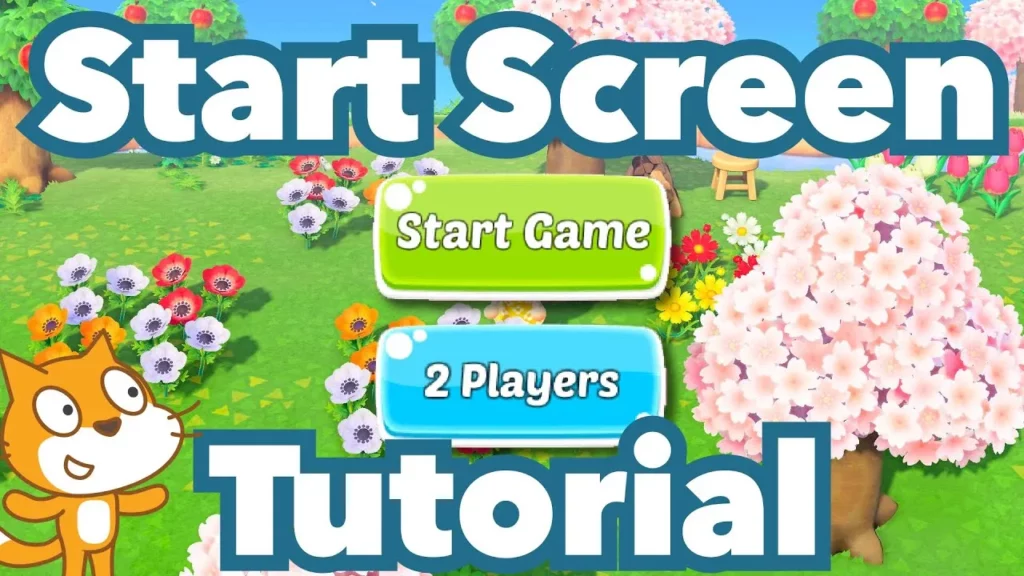
In this lesson, Zia teaches how to create a game with a start screen in Scratch. The process involves designing a start menu with buttons for “Play Game” and “Instructions,” programming the game to start when the play button is clicked, and adding instructions that can be displayed and hidden as needed. By following these steps, learners can enhance their Scratch projects with an interactive start screen.
How to Make a Game with Day/Night Mode in Scratch | Tutorial
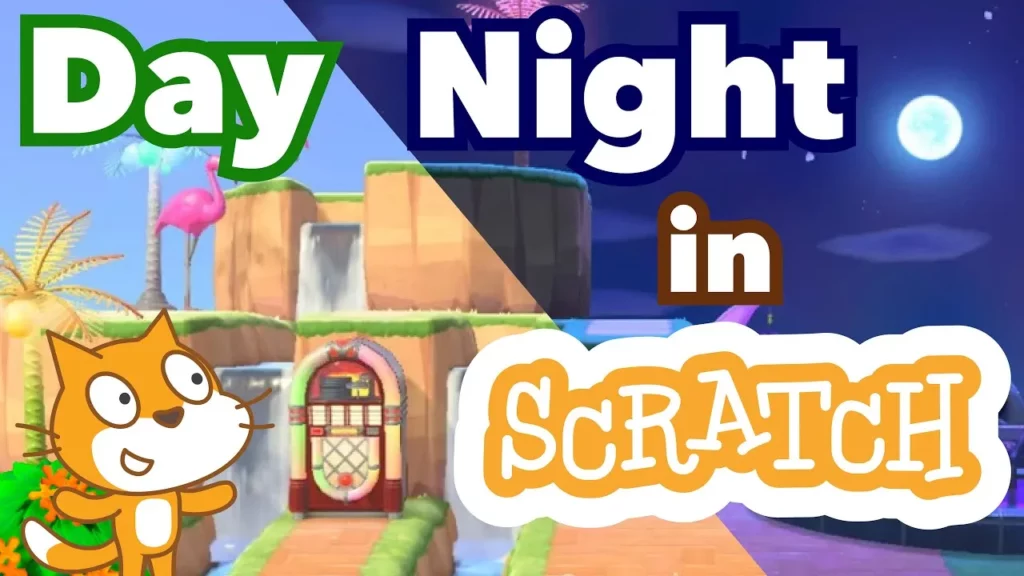
In this lesson, we learned how to create a day and night cycle in Scratch, enhancing the visual appeal of our projects. We covered how to design a night effect using a dark rectangle, switch between day and night modes with keyboard inputs, and animate a dog sprite to sleep at night using costume changes and broadcasts. Additionally, we explored automating the cycle to transition every five seconds, making our projects more dynamic and engaging.
How to Make a Room Designer Game in Scratch | Tutorial
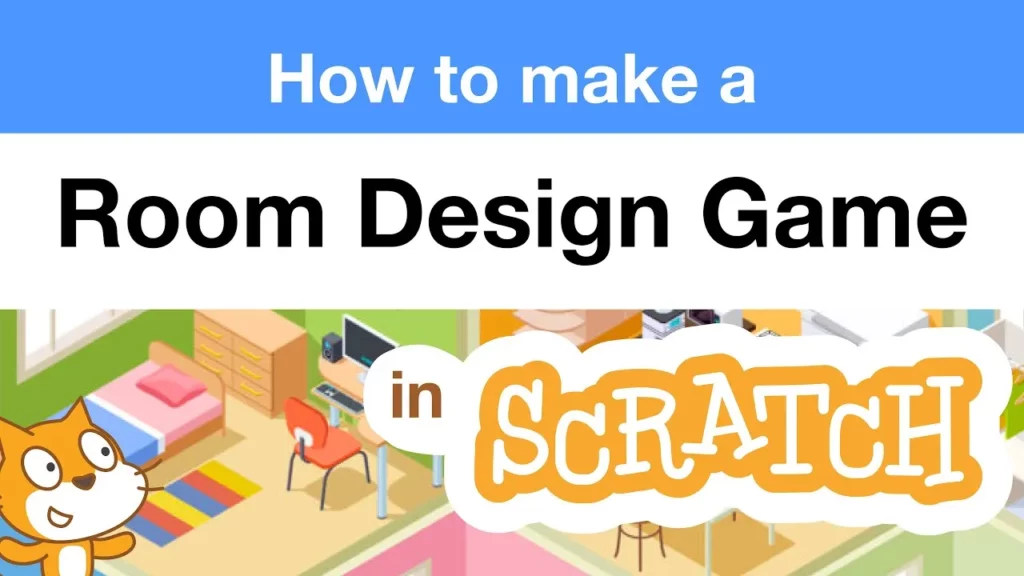
In this lesson, you will learn how to create an interactive room designer game in Scratch, where players can customize furniture and backgrounds. The guide covers essential steps such as creating clickable furniture sprites, enabling object movement and rotation, changing backgrounds, and fixing potential bugs to enhance gameplay. By the end, you’ll have the skills to design your own unique project with various styles and features.
How to Make a Drawing Game in Scratch | Art Simulator Tutorial
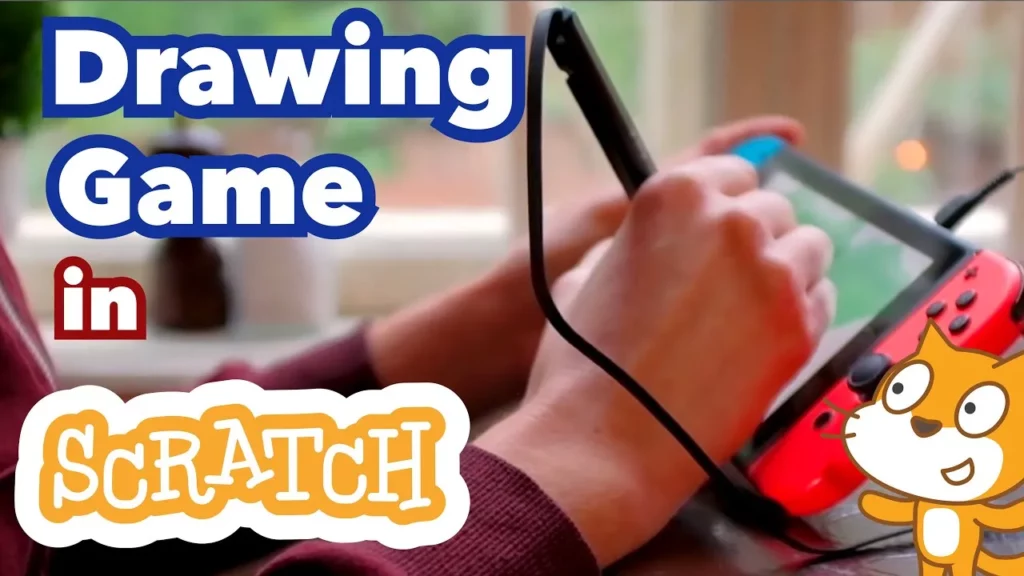
In this lesson, you will learn how to create a drawing game in Scratch by following four main steps: enabling drawing with the pen extension, allowing drawing only when the mouse button is pressed, creating buttons to change pen colors, and adding an eraser feature. Additionally, you’ll discover how to draw using different sprites and incorporate effects for a more engaging experience. By the end of the lesson, you’ll have a fun art simulator to enjoy and share.
How to Make an Inventory in Scratch | Tutorial
In this lesson, you learned how to create and manage an inventory system in Scratch, which is essential for tracking items collected by a character in a game. By creating a list named “inventory,” you can add and remove items as your character interacts with them, ensuring that the inventory starts empty at the beginning of the game. Additionally, you explored how to check for specific items and allow characters to use them, enhancing the gameplay experience.
How to Make a Shop in Scratch | Tutorial
In this lesson, you will learn how to create an interactive shop in Scratch for your game, allowing players to buy items like a red shirt. The process involves setting up a shop background, creating buttons to open and close the shop, and implementing a system to manage purchases based on the player’s coin count. By the end, you’ll be able to see the impact of purchases on your character’s appearance and set the stage for adding more features in future lessons.