
Scratch Teacher Accounts
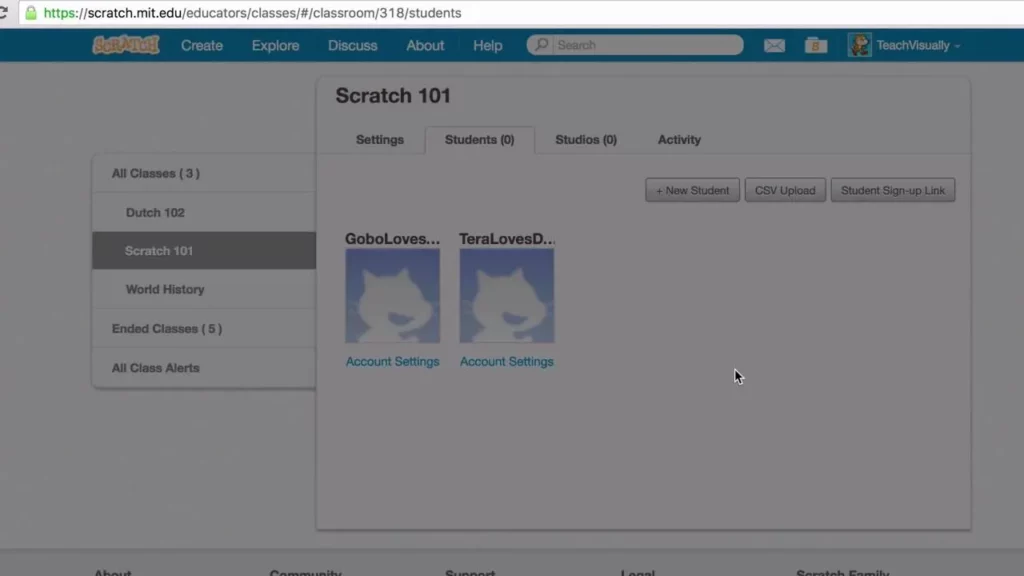
The lesson on Scratch Teacher Accounts provides educators with a comprehensive overview of the features designed to enhance classroom management and student engagement. It covers essential functionalities such as class creation, student enrollment methods, account management, and monitoring class activity, all aimed at streamlining the teaching experience. Additionally, the lesson emphasizes the importance of resources available for educators, including FAQs and inspirational stories, to support effective integration of Scratch into their curriculum.
Scratch My Blocks, Part 2: Tips and Tricks | Tutorial
In this lesson, we explored the differences between custom blocks and broadcast blocks in Scratch, highlighting how each serves to organize code differently. Custom blocks execute all their steps before the program continues, while broadcast blocks allow multiple actions to occur simultaneously. We also discussed the “Run without screen refresh” option, which can enhance visual feedback during execution but should be used cautiously to avoid potential issues with timing.
Scratch In Space!
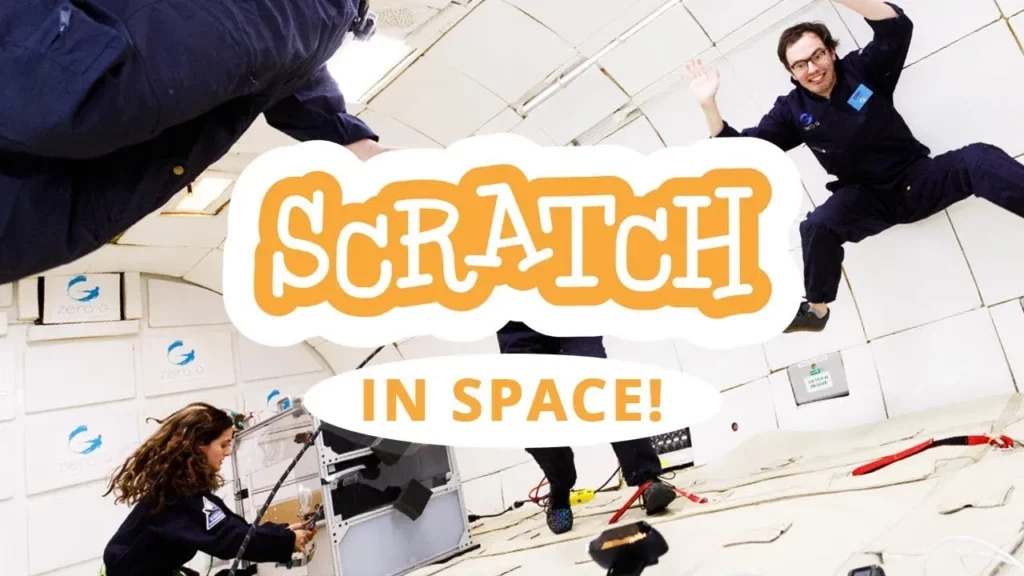
In the “Scratch In Space!” lesson, students are introduced to the Scratch programming platform, where they can create interactive stories, games, and animations. The lesson encourages creativity by inviting kids worldwide to design space-themed projects that can be interacted with using their bodies instead of traditional keyboard inputs, culminating in a unique testing experience in a zero-gravity environment. Participants are inspired to continue exploring their imaginations and creating innovative projects, potentially leading to future adventures in space.
Create Your Own Asset Pack, Part 1: What Is a Scratch Asset Pack & Why Should I Make One? | Tutorial
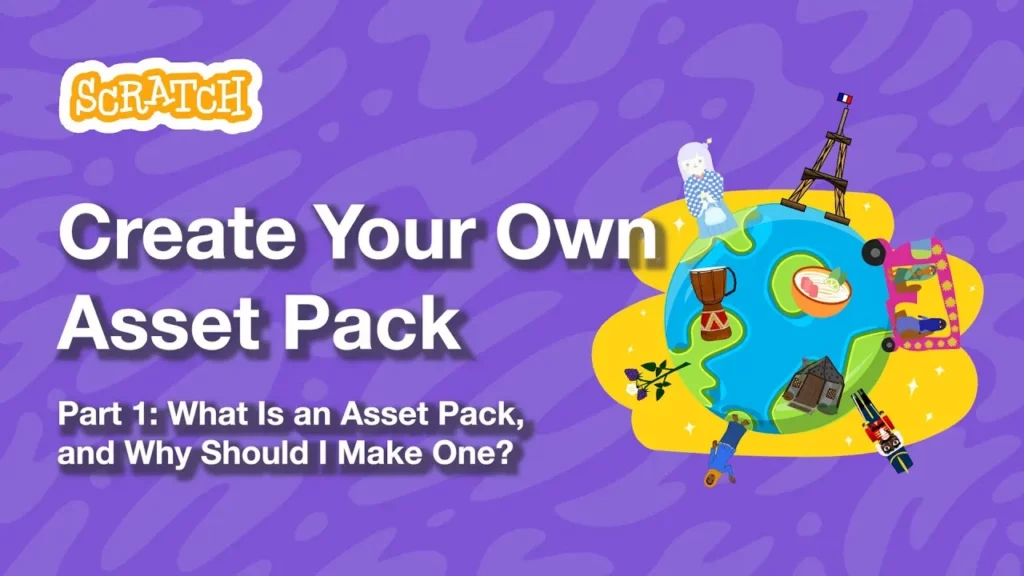
In this lesson, Justin from STEAM for Vietnam introduces the concept of an asset pack in Scratch, which is a collection of themed assets like sprites, sounds, and backdrops that reflect various cultures and ideas. He emphasizes the importance of creating unique cultural assets, such as a bowl of phở, to enhance projects and share personal heritage. The lesson encourages learners to think creatively about their own cultural backgrounds while adhering to community guidelines.
Animate Your Name with Scratch
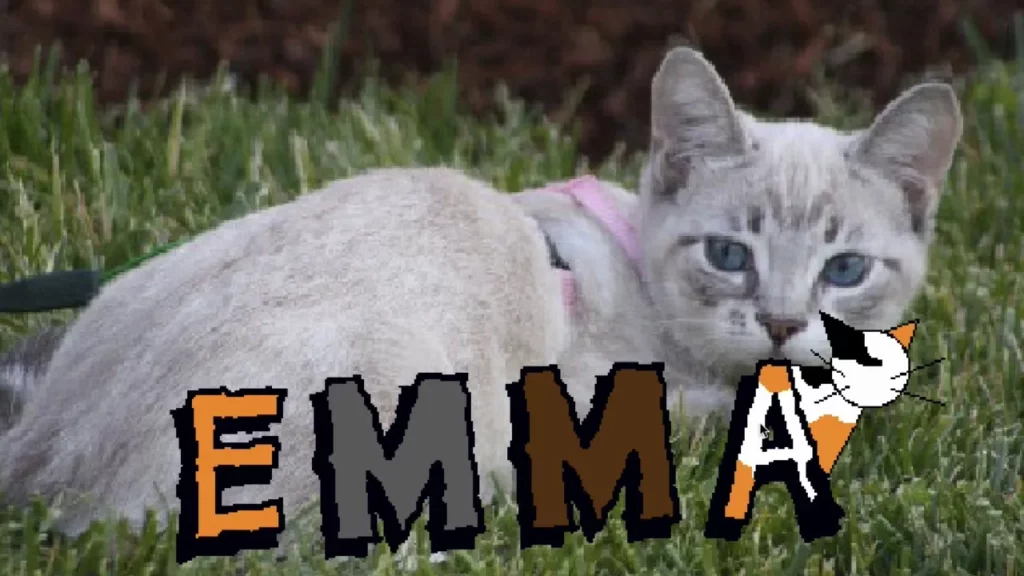
In this lesson, students learn how to animate their names using Scratch, a user-friendly programming platform. They start by selecting the first letter of their name and use blocks to create interactive animations, such as changing colors, spinning, and jumping. The lesson encourages creativity by allowing students to personalize each letter and explore various fun effects, making their names come to life in unique ways.
Scratch Video Update: Episode 1
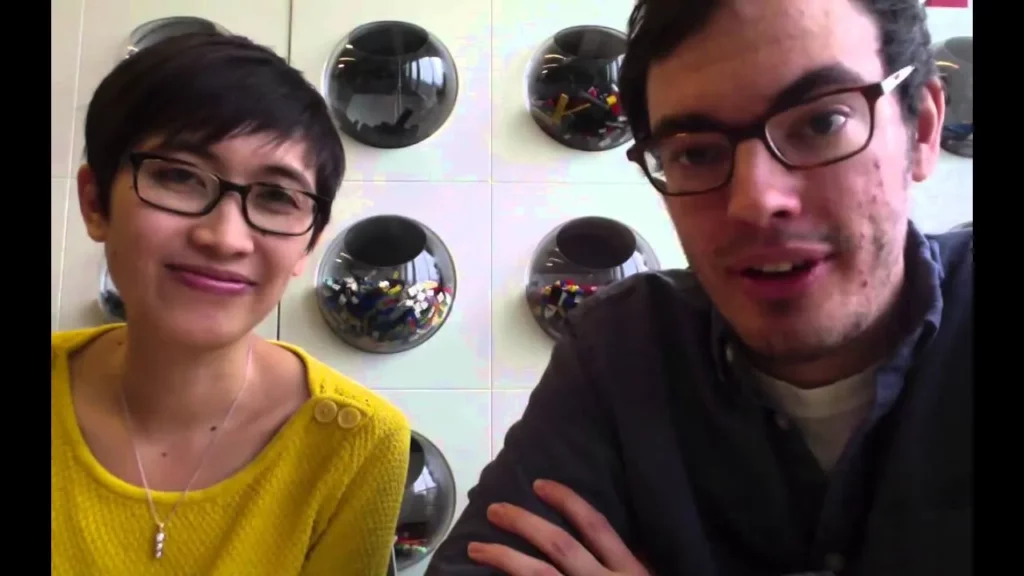
In the first episode of the Scratch Video Update series, hosts Eric and Rick from the MIT Scratch team introduce viewers to inspiring projects from the Scratch community, creative activities to try, and updates from the Scratch team. They highlight notable projects like “I Am the Doctor” and “The Life of Baldwin,” encourage participation in the Scratch Design Studio and the Hour of Code, and introduce new moderators to the community. The episode concludes with an invitation for viewers to share their thoughts and suggestions for the series.
Scratching the Surface: Scratch Keyboard Shortcuts
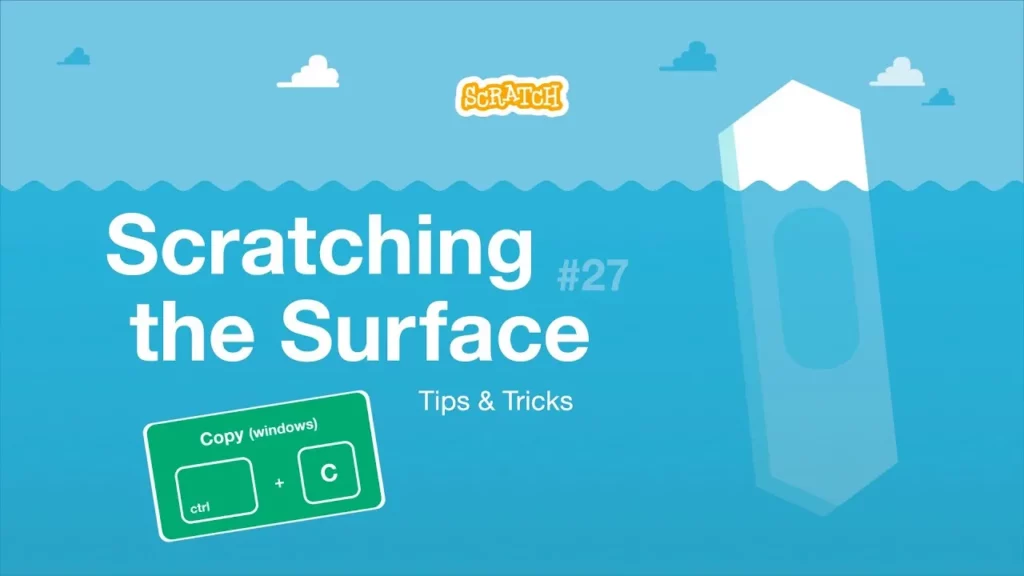
In this lesson, students learn about keyboard shortcuts in Scratch that can enhance their project creation efficiency. Key shortcuts include copying and pasting objects using Command C/V on Mac or Ctrl C/V on Windows, precisely placing copies with the Option/Alt key, and easily undoing mistakes with Command Z or Ctrl Z. By mastering these shortcuts, students can streamline their workflow and make their Scratch projects more enjoyable.
Using Variables and Lists in Scratch (Part 2) | Tutorial
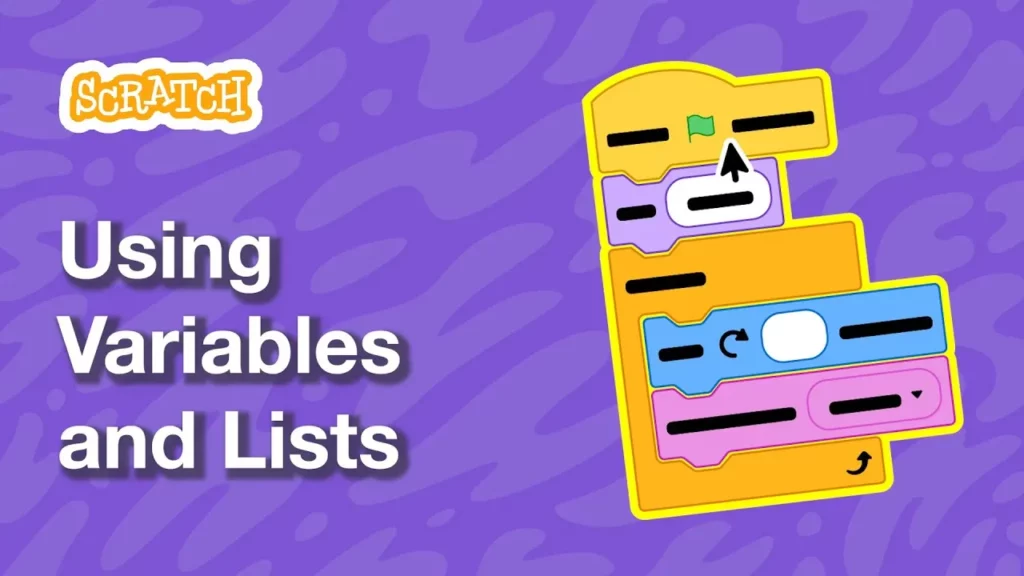
In this lesson, we expanded our understanding of variables and lists in Scratch by creating a custom variable for controlling sprite brightness and implementing interactive sliders. We also learned how to create lists to store multiple pieces of information, such as user responses, and explored various applications for lists, including game inventories and calculations. The lesson encourages experimentation with these tools to enhance our Scratch projects.
Scratch Story: Natalie
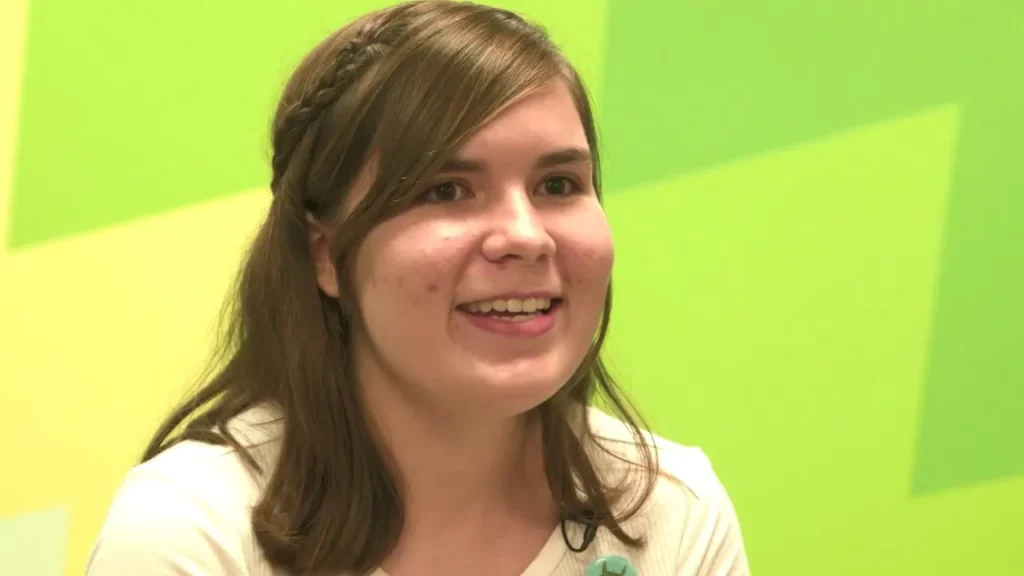
In “Natalie’s Creative Journey,” the lesson highlights how Natalie discovered her passion for art and coding through the Scratch platform. Initially intimidated by coding, she learned to embrace it, leading to the creation of engaging projects like “Lemonade Time,” which garnered positive feedback and encouragement. The lesson emphasizes that Scratch is a valuable tool for combining creativity with coding skills, inviting others to explore their own potential in this interactive environment.
How to Make a Catch Game in Scratch | Tutorial
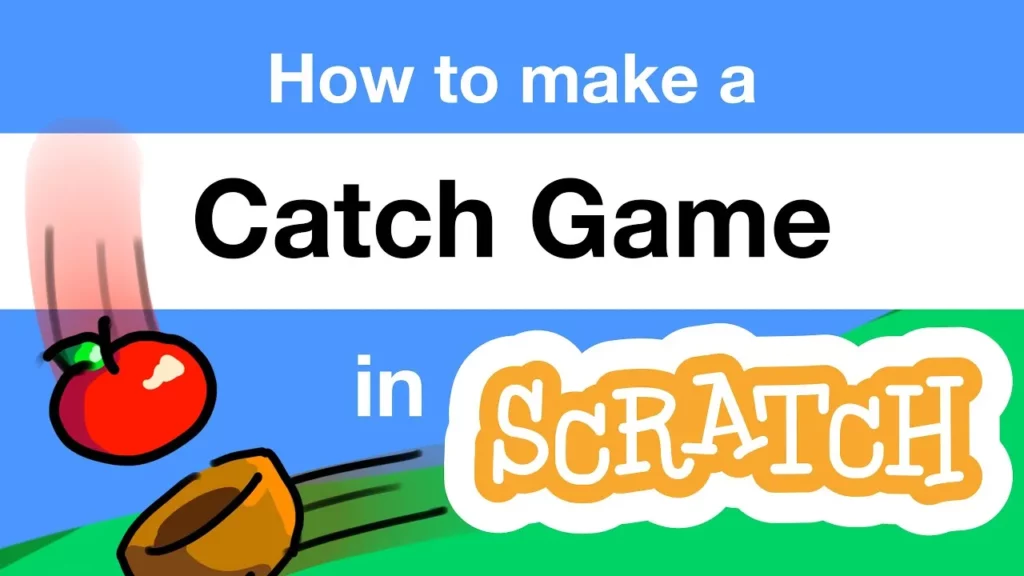
In this lesson, Zoë from the Scratch team guides you through creating a catch game in Scratch, where players catch falling objects to score points. The tutorial covers five simple steps: moving the catcher character, making the object fall from the top of the screen, detecting catches, and keeping score, allowing for customization with different objects and characters. By the end, you’ll have a fun and interactive game that you can personalize further.