
How to Make a Virtual Pet in Scratch | Tutorial
In this lesson, students learn how to create a virtual pet using Scratch, starting with selecting a pet and backdrop, then programming interactions such as greetings, animations, and feeding. The tutorial guides learners through adding features like hunger tracking and encourages them to expand their project with additional elements like toys and day-night cycles. By the end, students will have a functional virtual pet simulator that they can customize and enhance.
How to Make a Virtual Town in Scratch | RPG | Tutorial
In this lesson, you will learn how to create a virtual town in Scratch by designing a main character, adding interactive backgrounds, and incorporating various locations and characters. You’ll also discover how to enable movement and interaction using arrow keys and event blocks, allowing players to explore and engage with the town. By the end, you’ll have a personalized virtual town to share and enjoy!
Unlock the Scratch Block: Next Costume Block
In this lesson, students learn how to animate a fox in Scratch by utilizing the “Next Costume” block to create a wagging tail effect. They start by managing the fox’s costumes, duplicating one to make slight adjustments, and then implement a “Forever” loop combined with a “Wait” block to control the animation speed. This foundational skill opens up endless possibilities for creating various animations.
Scratching the Surface: X & Y
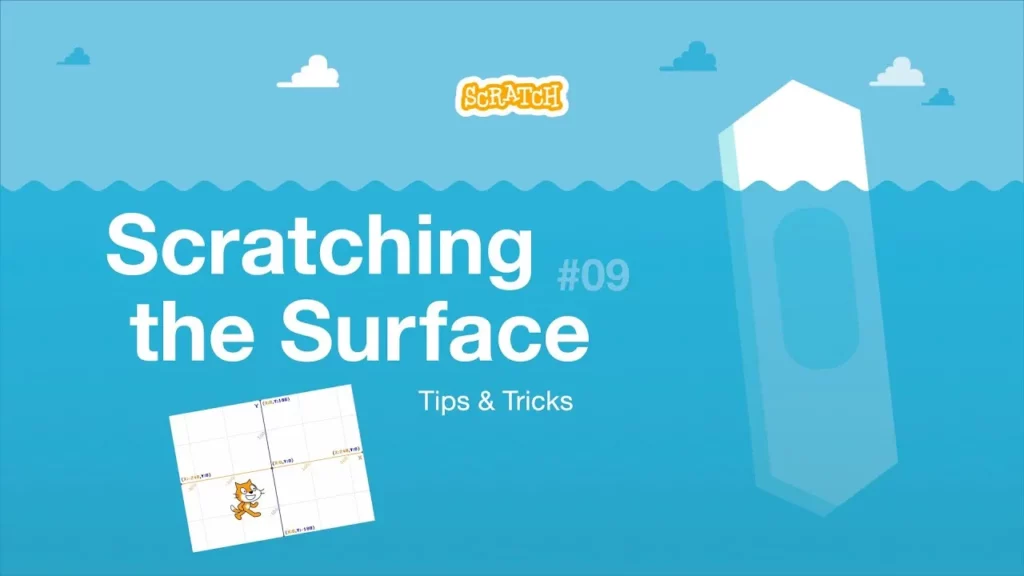
In this lesson, students are introduced to Scratch, a coding platform where they can control a cat’s movement on the screen using X and Y coordinates, similar to a grid. They learn how to use the “go to” block to position the cat at specific coordinates and discover how motion blocks can help track and return the cat to favorite spots, encouraging further exploration and creativity in coding.
Sounds in Scratch: Add, Record, and Use Text to Speech Blocks | Tutorial
In this lesson, students learned how to enhance their Scratch projects by adding sounds from the Sound Library, recording their own sounds, and utilizing text-to-speech blocks. They explored how to incorporate sound blocks into their code to create engaging audio experiences and discovered techniques for editing recorded sounds and synchronizing text with speech. With these skills, students can create dynamic stories, games, and animations that come to life with sound.
Color Contrast in Scratch!
In this lesson, Christen from the Scratch Team introduces recent updates aimed at enhancing accessibility on the Scratch platform, including a color change for the Nav Bar and the introduction of high contrast blocks in the project editor. These changes are designed to make Scratch more inclusive and easier to use for everyone, particularly for individuals with disabilities, while maintaining the familiar user experience. The team appreciates community feedback that has contributed to these improvements and encourages users to continue exploring and creating.
Turtle Graphics: Using Pen Blocks in Scratch | Tutorial
In this lesson on Turtle Graphics using Scratch, students learn how to create drawings by utilizing Pen blocks, which simulate a turtle drawing on paper. By selecting a sprite, adding the Pen extension, and breaking down shapes into simple movements, learners can experiment with programming to create various designs while also debugging and optimizing their code. The lesson encourages creativity and exploration, allowing students to use different colors, sizes, and techniques to enhance their drawings.
Conditional Statements: Make Interactive Projects (Part 1)| Tutorial
In this lesson, students learn about conditional statements in Scratch, which allow programs to react differently based on specific situations. By creating a dynamic fish game, they explore how to use blocks like “wait until” and “repeat until” to trigger actions, such as changing the fish’s costume or playing sounds when it interacts with a pufferfish. The lesson encourages experimentation with various conditional structures to enhance interactivity in their projects.
Scratch Video Update: Ep. 7
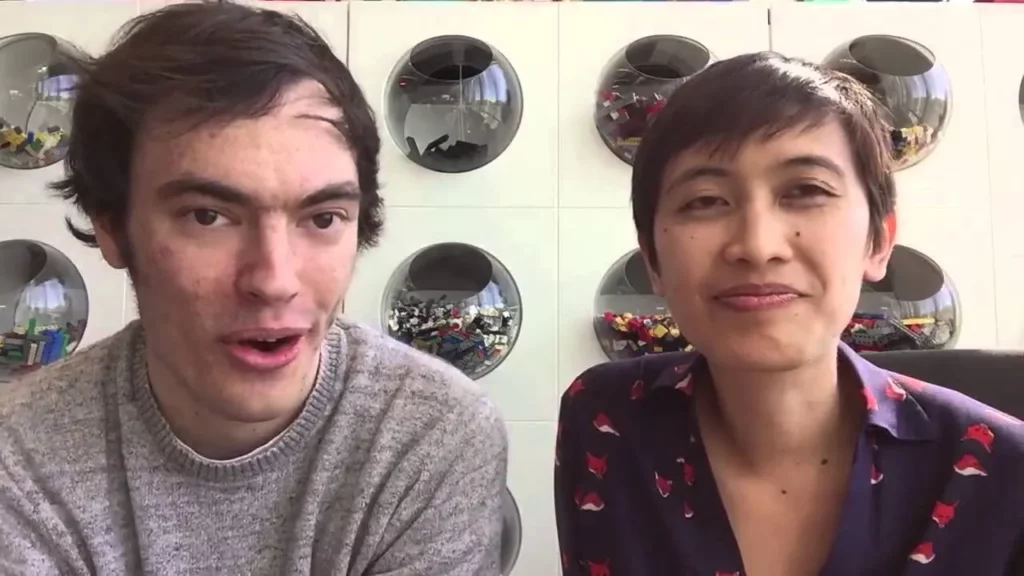
In Episode 7 of the Scratch Video Update, hosts Rick Rose and Eric (SpeakVisually) highlight the recent celebrations of Scratch Day and Mother’s Day within the Scratch community. They showcase creative projects, including a dress-up game featuring Scratch facts and heartfelt Mother’s Day creations like digital cards and virtual hugs. The episode encourages viewers to explore remixing opportunities and the media library for new project ideas, while also sharing the excitement of global Scratch Day events.
Tutorial: Video Sensing in Scratch

In this lesson, students learned about the video sensing feature in Scratch, which allows them to use their computer’s webcam to interact with projects. They explored three key video sensing blocks: turning on the webcam, adjusting video transparency, and detecting motion, culminating in a fun project where a cat meows in response to detected movement. The lesson encourages creativity and experimentation with these tools to create engaging Scratch projects.