
Create a Sprite with the Scratch Paint Editor | Tutorial

In this lesson, you learn how to create a custom sprite using the Scratch paint editor, focusing on the advantages of vector mode for drawing smooth shapes. By following steps to draw a cat face, including using tools like the Circle, Rectangle, Reshape, and Line tools, you can design and refine your sprite. Once completed, you can animate your creation with code, opening up endless possibilities for your Scratch projects.
Scratching the Surface: Adjust Block Language and Contrast
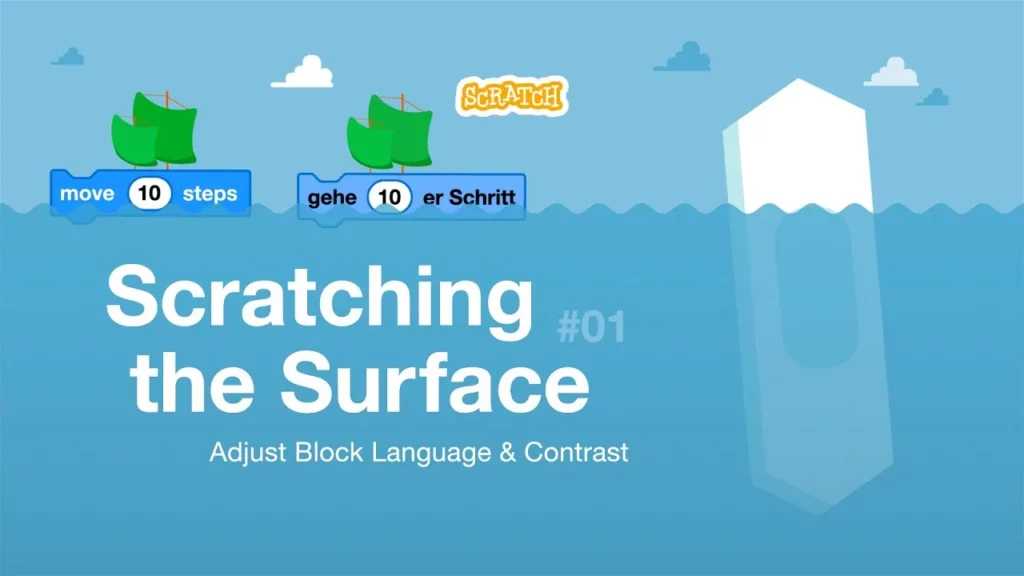
In this lesson, students learn how to customize their Scratch Project Editor by adjusting block colors and changing the language settings to enhance their user experience. By selecting between “Original” and “High Contrast” modes, users can improve visibility, while the option to choose from over 75 languages makes Scratch accessible to a global audience. The lesson encourages exploration and creativity in using these features to personalize the Scratch workspace.
Scratch: Unleashing Creativity through Coding
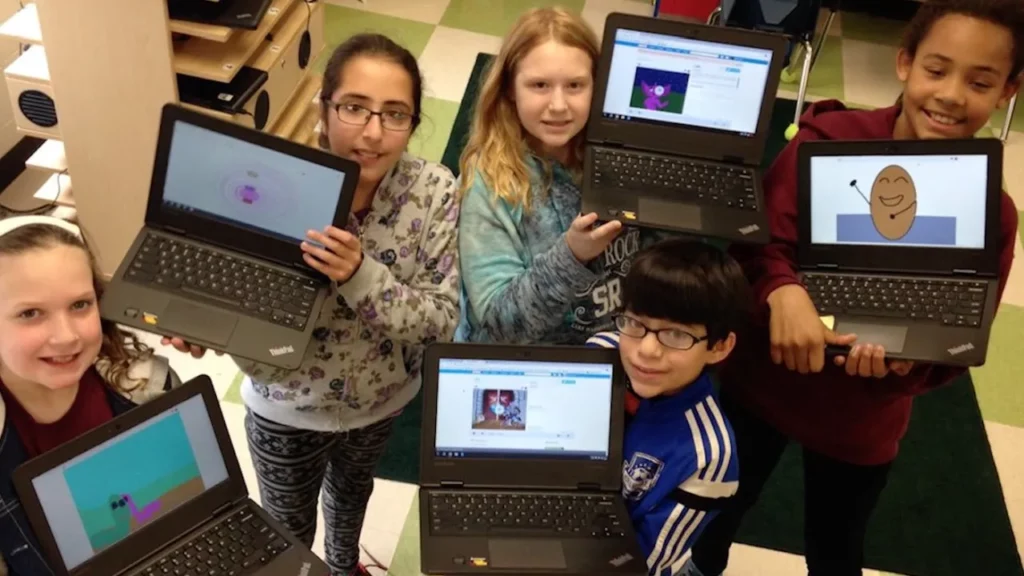
The lesson on Scratch emphasizes the platform’s role in empowering children to express their creativity through coding. By allowing users to create, program, and share projects, Scratch fosters essential skills such as problem-solving and collaboration while making coding accessible and enjoyable. As Scratch continues to grow, community support is vital for its development, ensuring that all kids can become creators and explore their ideas through interactive games, animations, and stories.
What is Scratch?
Scratch is a user-friendly platform that allows individuals to create animations and games while learning programming skills. It fosters creativity by enabling users to collaborate on projects and share their work, inspiring others to explore their own creativity. With Scratch, anyone can start coding at their own pace, transforming from a consumer of technology into a creator.
Scratch Day 2018
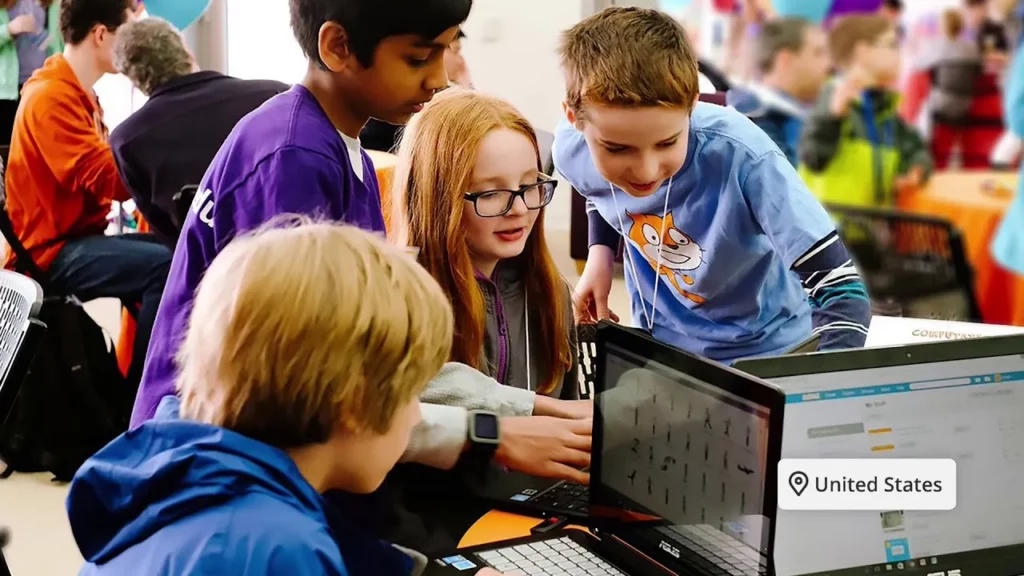
Scratch Day is a global celebration that invites people of all ages to explore the creative possibilities of Scratch, a programming tool that allows users to create stories, games, and animations. Participants can join existing events or host their own, fostering a sense of community and fun while learning about coding. With over 1,000 events worldwide, Scratch Day encourages everyone to unleash their creativity and share their projects, making coding accessible and enjoyable for all.
Where In the World is Scratch Cat?
In this lesson, students are introduced to Scratch, a creative software that allows them to design games, stories, and animations while learning programming skills. The adventure of Scratch Cat serves as inspiration for students to create their own projects, encouraging problem-solving and creativity. Additionally, the lesson emphasizes the importance of sharing creations and engaging with a community of fellow creators.
Lifelong Kindergarten Panelpicker SXSW

In “Lifelong Kindergarten: A New Approach to Learning,” Mitch Resnick emphasizes the importance of maintaining a playful and creative learning environment throughout education, akin to that found in kindergarten. He critiques the traditional education system’s shift towards structured, lecture-based learning, advocating for a model that incorporates projects, passion, peers, and play to foster creativity and engagement. By embracing these principles, Resnick believes we can better prepare students for the complexities of the modern world while making learning a more enjoyable and effective experience.
What Are Variables and Lists in Scratch? (Part 1)| Tutorial
In this lesson, students learn about variables and lists in Scratch, which are essential tools for enhancing their programming projects. Variables act as containers for single pieces of information, like a player’s score, while lists can hold multiple items, similar to a shopping list. By utilizing these features, programmers can store and manipulate data, allowing for more dynamic and interactive games and stories.
Scratch My Blocks, Part 1: Create Custom Blocks | Tutorial
In this lesson, students learn how to create custom blocks in Scratch, which allows them to simplify their coding by grouping a series of blocks into a single, named procedure. This not only makes their code more organized and easier to read, but also enables efficient updates, as changes to the custom block automatically reflect wherever it is used in the project. The lesson encourages creativity and lays the groundwork for exploring more advanced features in future lessons.
Pixel Art in Scratch 3 Ways | Tutorial

In this lesson, Zoe from the Scratch Team introduces three engaging methods for creating pixel art using Scratch. The first method involves pixelating an existing sprite with a simple code block, the second focuses on resizing a sprite in Bitmap mode to achieve a pixelated look, and the third encourages users to draw their own pixel art from scratch using the paint tool. Each method highlights the fun and creativity involved in making pixel art, inviting participants to explore and share their creations.